Broker Connection Guide
Before Atomik can execute trades, you need at least one account connected. That can be a real broker account — or the built-in Atomik Paper account, which needs no broker at all.
All connections start in the same place: Dashboard → Accounts panel → + Connect Account.
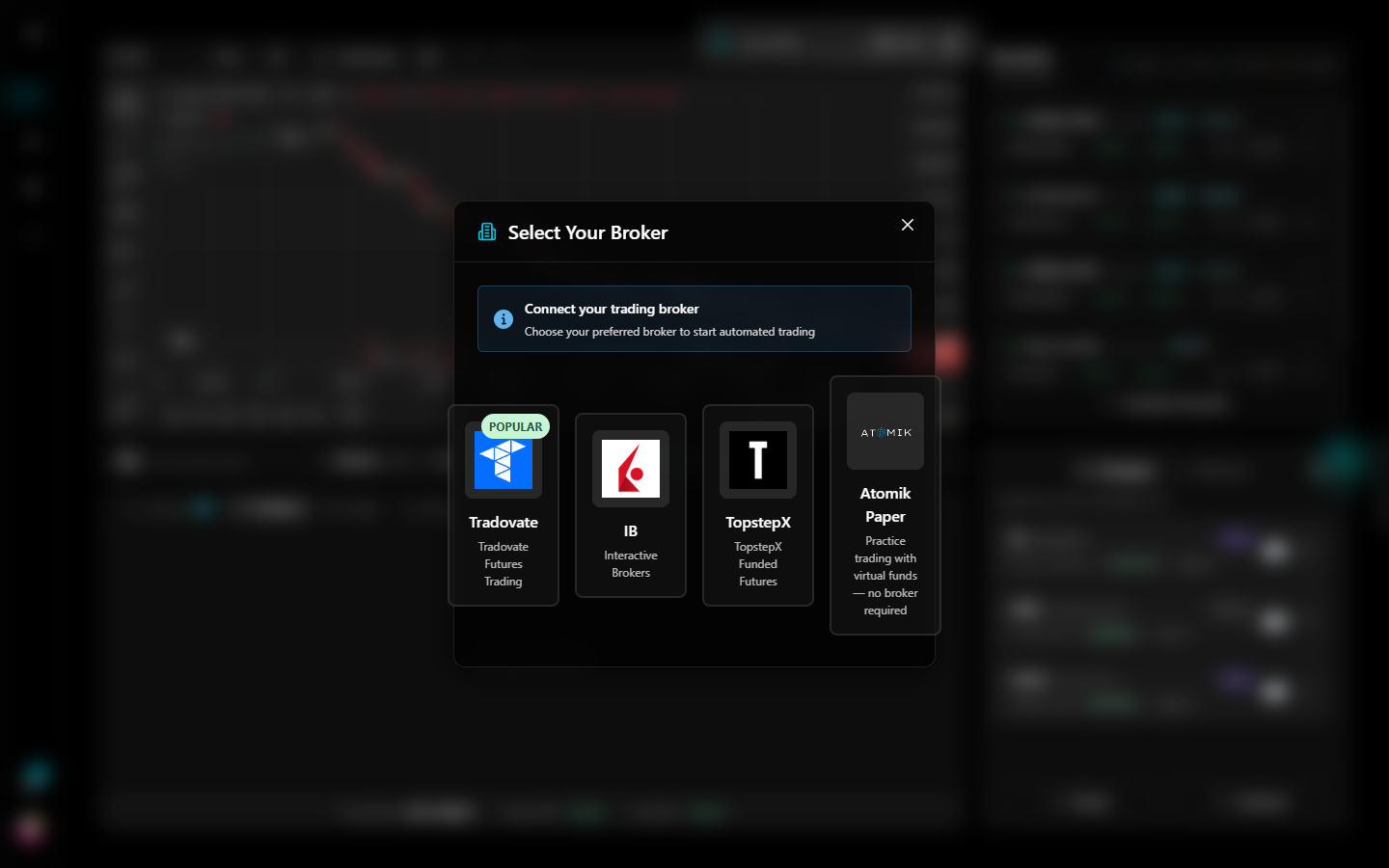
What you can connect
| Account | Markets | Connection | Status |
|---|---|---|---|
| Tradovate | Futures (ES, NQ, MNQ, MES, GC, CL, …) | OAuth 2.0, ~2 minutes | Available — most-used broker on Atomik |
| Atomik Paper | Futures (simulated, live market data) | One click | Available |
| Interactive Brokers | Stocks, options, futures, forex | OAuth | Available |
| TopstepX | Funded futures accounts | API key | Available |
There are no per-account fees — your plan's account limit is the only constraint.
Connecting Tradovate (recommended)
Tradovate uses OAuth 2.0: you authorize Atomik on Tradovate's own login page, and Atomik never sees your password.
- Click + Connect Account and select Tradovate
- Choose your environment:
- Demo — Tradovate's paper environment (good for testing with a real broker connection)
- Live — real money
- Log in on Tradovate's authorization page and click Authorize
- You're redirected back — the account appears in your Accounts panel
Atomik's access is limited to the trading scope: it can place and cancel orders and read balances and positions. It cannot withdraw funds or change your account settings.
Staying connected: Atomik's token-refresh service keeps the OAuth connection alive automatically. You won't need to re-authorize unless you explicitly disconnect.
Funded and prop-firm accounts
If your evaluation or funded account comes with a Tradovate login — as many futures prop programs do — it connects exactly like any other Tradovate account. See the Prop-Firm Accounts guide for details, including running one strategy across several funded accounts.
Atomik Paper
Select Atomik Paper in the connect dialog and you immediately get a simulated account with $100,000 in virtual funds — no broker signup, no API keys. It trades against live market data through the same execution pipeline as real accounts. Full details in the Paper Trading guide.
Interactive Brokers
IB connects via OAuth from the same dialog, with demo, paper, and live environments. IB support is newer than Tradovate's — if you hit an issue connecting or executing, email support@atomiktrading.io and we'll get you sorted.
TopstepX
TopstepX evaluation and funded accounts connect directly with an API key:
- Click + Connect Account and select TopstepX
- Enter your TopstepX username and API key
- The accounts behind that key (evaluation, combine, funded) appear in your Accounts panel
It requires an active TopstepX API-access subscription on the Topstep side. Note that many Topstep-ecosystem accounts are also reachable the Tradovate way described above.
Managing multiple accounts
Connect as many accounts as your plan allows — same broker or mixed:
- Copy trading — run one strategy across several accounts (guide)
- Separation — dedicate different accounts to different strategies
- Prop stacking — multiple funded accounts on one signal
Every connected account shows in the Accounts panel with its balance, status, and mode (Manual / Auto / Leader / Following).
Account limits by plan
| Plan | Connected accounts |
|---|---|
| Starter ($89/mo) | 3 |
| Pro ($129/mo) | 10 |
| Elite ($349/mo) | 25 |
Disconnecting an account
Open the account's options menu (⋮ on its card) and disconnect. This immediately invalidates the stored tokens and deactivates any strategies linked to that account. For extra certainty you can also revoke Atomik's access from your broker's own settings page.
Troubleshooting
| Problem | Solution |
|---|---|
| Account shows disconnected after working | The token likely expired or was revoked broker-side. Reconnect via OAuth. |
| "Account limit reached" | You've hit your plan's limit — disconnect an unused account or upgrade. |
| Tradovate authorization loop | Clear browser cookies and retry. If it persists, disconnect the account fully and reconnect. |
| Trades not executing on a connected account | Confirm the account is connected and the strategy is activated on this specific account with its toggle on. |
Next steps
- Your First Automated Trade — the end-to-end walkthrough
- Prop-Firm Accounts — funded-account specifics
- Webhook Setup — wire up your signals
- Security — how credentials and tokens are protected