Webhook Setup Guide
Webhooks are the core of Atomik Trading's automation. They let external platforms like TradingView send trading signals directly to your connected broker accounts — executing trades in milliseconds without manual intervention.
How Webhooks Work
TradingView Alert → HTTP POST → Atomik Webhook URL → Match Strategy → Execute on Broker
- You create a webhook in Atomik and get a unique URL + secret key
- You paste that URL into TradingView (or any alert source)
- When an alert fires, it sends a JSON payload to your webhook URL
- Atomik validates the request, matches it to your activated strategy, and executes the trade on your linked broker account
Creating a Webhook
Webhooks are created from the dashboard's Strategies panel (bottom right):
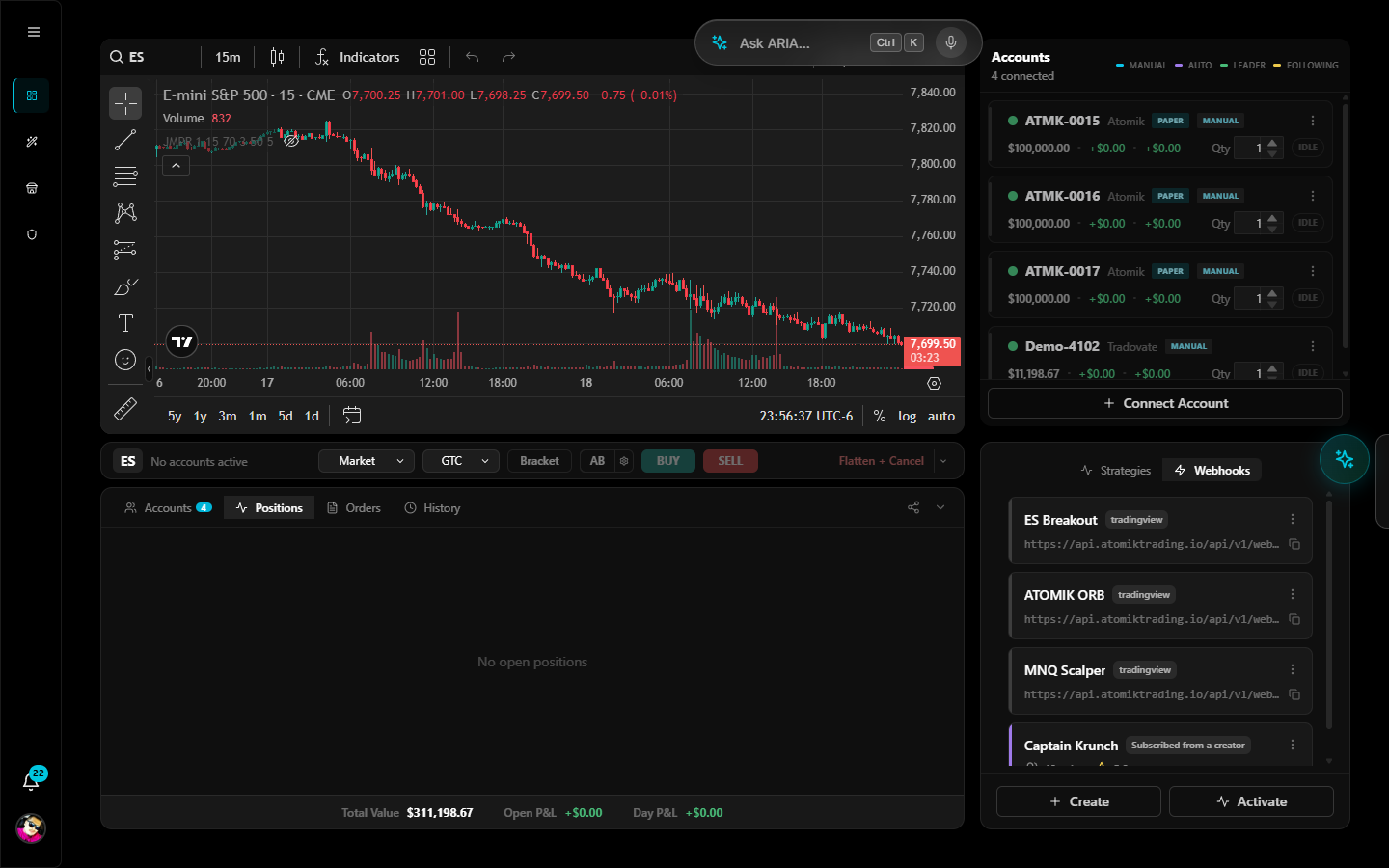
- Click + Create and choose Webhook Strategy
- Pick your intent — Personal Use for your own trading (you can share or monetize later)
- On the Configuration step, name the strategy, pick the closest strategy type, and choose TradingView Pine Script (or Custom Implementation for any other HTTP source) as the signal source
- Review and create — you'll receive:
- A webhook token (the unique URL path)
- A secret key (for request validation — copy the full URL immediately, the secret won't be shown again)
Your webhooks live in the Webhooks tab of the same panel, each with its delivery logs.
Your full webhook URL will be:
https://api.atomiktrading.io/api/v1/webhooks/{your-token}?secret={your-secret-key}
Webhook Payload Format
Atomik expects a JSON body with these fields:
| Field | Type | Required | Description |
|---|---|---|---|
action | string | Yes | "BUY", "SELL", or "EXIT" (case-insensitive). EXIT always closes — sized by the comment percentages below, full close if none. |
comment | string | No | Exit signal type (see below) |
quantity | number | No | Order size — only read by strategies set to From the alert JSON (see Where the quantity comes from) |
Basic Examples
Open a long position:
{
  "action": "BUY"
}
Close a long position (full exit):
{
  "action": "SELL",
  "comment": "EXIT_FINAL"
}
Partial exit (50% of position):
{
  "action": "SELL",
  "comment": "EXIT_50"
}
Exit Comment Types
The comment field controls partial and full exits:
| Comment | Effect |
|---|---|
EXIT_50 or EXIT_HALF | Close 50% of position |
EXIT_25 | Close 25% of position |
EXIT_75 | Close 75% of position |
EXIT_FINAL, EXIT_ALL, or EXIT_100 | Close 100% of position |
EXIT_33 (any number) | Close that percentage of position |
ENTRY | New position entry |
| (no comment) | Defaults to full exit (100%) |
Quantities are rounded up using math.ceil() to avoid leaving fractional shares.
Where the quantity comes from
Every strategy you activate chooses this for itself, in the activation dialog:
Set in Atomik (the default) — the quantity you typed when you activated the
strategy is what trades, on every signal. A quantity in the alert is ignored.
This is how webhooks have always worked, and nothing changes for you.
From the alert JSON — your alert sends "quantity" and that is what trades.
Use this when the strategy itself decides position size. In TradingView,
{{strategy.order.contracts}} gives the right number on both entries and exits:
{
  "action": "{{strategy.order.action}}",
  "comment": "{{strategy.order.comment}}",
  "quantity": "{{strategy.order.contracts}}"
}
Two things to know before switching a strategy over:
- Exits use it too.
{"action": "SELL", "quantity": 1}closes 1 contract, not the whole position. If you leavequantityout of an exit, thecommentpercentages above still apply as normal. - Max per signal. Set it when you switch, and any alert asking for more trades that cap instead. Leave it blank and a platform maximum of 50 contracts applies. This bounds a typo in your strategy — or anyone who gets hold of your webhook URL.
If an alert sends no quantity, or sends something unusable, the strategy falls back to the quantity configured in Atomik rather than skipping the trade.
The setting lives on each activated strategy, not on the webhook — so if you share a strategy, every subscriber still controls the size traded in their own account.
Payload quantities apply to single-account strategies only. Multi-account groups keep the per-account quantities you configured for them.
TradingView Integration
Setting Up Alerts
- Open your chart in TradingView and add your indicator or strategy
- Click the Alert button (bell icon) or press
Alt+A - Set your condition (e.g., "RSI crosses below 30")
- Under Notifications, check Webhook URL
- Paste your full Atomik webhook URL (including
?secret=) - In the Message field, enter your payload:
For a simple buy alert:
{"action": "BUY"}
For a sell/exit alert:
{"action": "SELL", "comment": "EXIT_FINAL"}
Pine Script Strategy Example
If you're using a Pine Script strategy, you can use TradingView's built-in variables:
//@version=5
strategy("My Strategy", overlay=true)

// Your entry/exit logic
longCondition = ta.crossover(ta.sma(close, 20), ta.sma(close, 50))
shortCondition = ta.crossunder(ta.sma(close, 20), ta.sma(close, 50))

if longCondition
    strategy.entry("Long", strategy.long, comment="ENTRY")

if shortCondition
    strategy.close("Long", comment="EXIT_FINAL")
Then set the webhook message to:
{"action": "{{strategy.order.action}}", "comment": "{{strategy.order.comment}}"}
Webhook Security
Secret Key Validation
By default, webhooks require a valid secret key passed as a query parameter. Requests without a matching secret receive a 401 Unauthorized response.
IP Allowlisting
You can restrict which IP addresses can trigger your webhook:
- Go to Webhooks → select your webhook → Edit
- Enter allowed IPs as a comma-separated list (e.g.,
52.89.214.238, 34.212.75.30) - Save — any request from a non-listed IP will receive
403 Forbidden
TradingView sends alerts from a known set of IP addresses listed in their documentation.
Rate Limiting
Webhooks are rate-limited to 10 requests per second to support high-frequency strategies while preventing abuse. Exceeding this limit returns 429 Too Many Requests.
Additionally, a 1-second idempotency window (Redis-backed) prevents duplicate executions from repeated signals.
Webhook Limits by Tier
| Tier | Active Webhooks |
|---|---|
| Starter ($89/mo) | 3 |
| Pro ($129/mo) | 10 |
| Elite ($349/mo) | Unlimited |
See Subscription & Pricing for full tier details.
Testing Your Webhook
- Check the Webhook Logs: After triggering an alert, go to Webhooks → your webhook → Logs to see incoming requests, validation status, and any errors
- Use a test alert: Create a TradingView alert with a condition that triggers immediately (e.g., "Price crosses above $0.01") to verify the connection without waiting for a real signal
- Paper trade first: Connect a paper/demo broker account and test with real alerts before going live
Troubleshooting
| Problem | Solution |
|---|---|
| Alert fires but no trade executes | Check webhook logs for errors. Verify the secret key is correct in the URL. Confirm the webhook is linked to an activated strategy with an active broker account. |
401 Unauthorized | Secret key is missing or incorrect. Re-copy from webhook settings. |
403 Forbidden | IP not in allowlist, or your subscription is inactive. Check both. |
429 Too Many Requests | You're exceeding 10 requests/second. Reduce alert frequency. |
404 Not Found | Webhook token is wrong or webhook has been deleted. Verify the URL. |
| Duplicate trades | The 1-second idempotency window should prevent this. If duplicates persist, check that your alert isn't firing multiple times per bar (use "Once Per Bar Close"). |
Response Format
Successful webhook requests return 202 Accepted:
{
  "status": "accepted",
  "message": "Webhook received and being processed",
  "webhook_id": 123,
  "timestamp": "2026-03-20T12:34:56.789123"
}
The trade is processed asynchronously — check your dashboard or broker account for fill confirmation.
Next Steps
- Your First Automated Trade — End-to-end walkthrough
- Trading Strategies — Strategy types and configuration
- Security Best Practices — Full security hardening guide