Your First Automated Trade
This walkthrough takes you from a fresh account to your first automatically executed trade. It uses a paper account — real market data, virtual money — so nothing here risks a dollar. The whole setup takes about ten minutes.
What you'll do:
- Add an Atomik Paper account (no broker needed)
- Create a webhook strategy and get your webhook URL
- Activate the strategy on your paper account
- Point a TradingView alert at your webhook
- Watch the trade execute on the dashboard
Step 1: Add a paper account
Everything happens on the Dashboard — chart on the left, your accounts and strategies on the right.
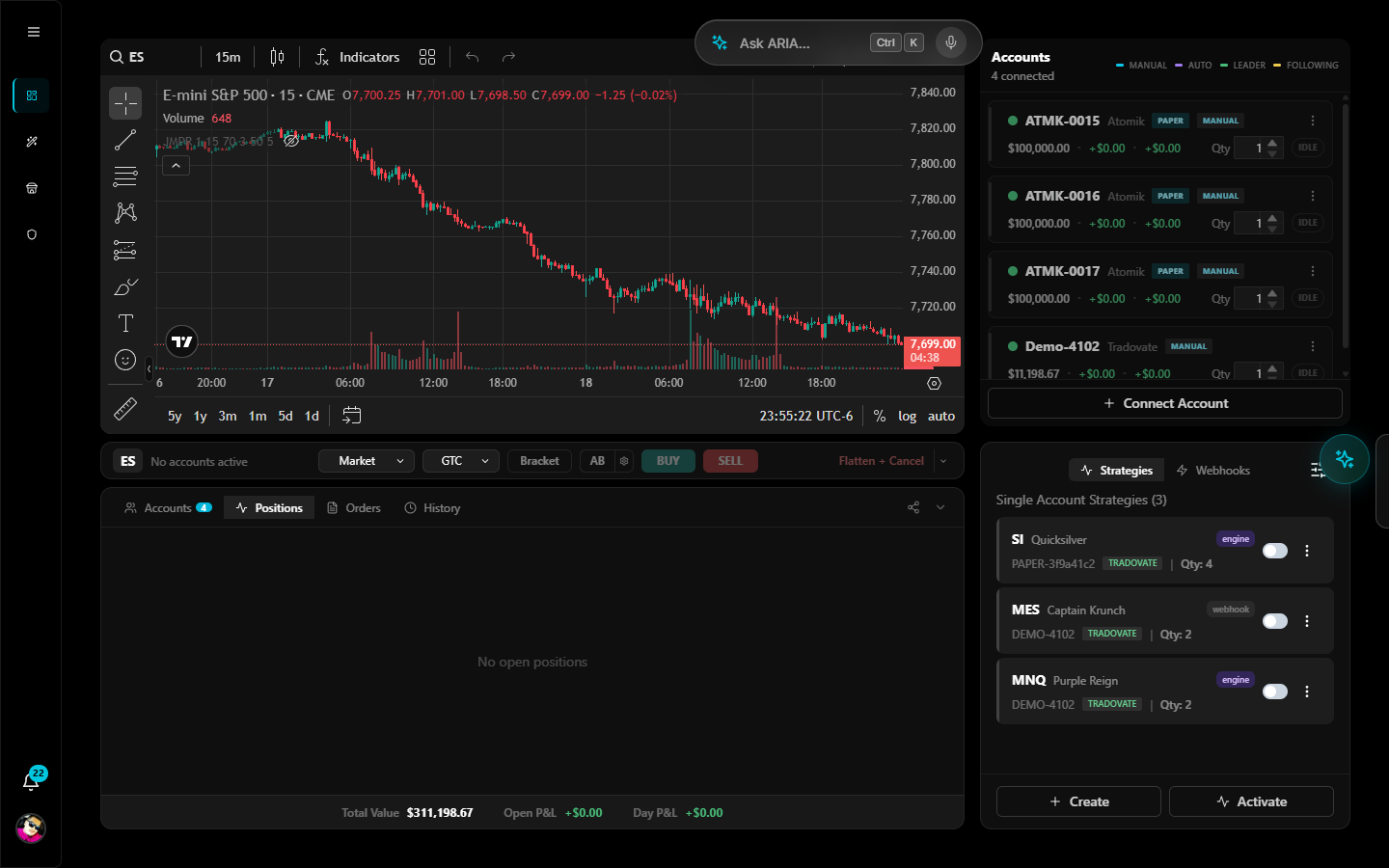
- In the Accounts panel (top right), click + Connect Account
- Choose Atomik Paper — a simulated account with $100,000 in virtual funds, no broker required
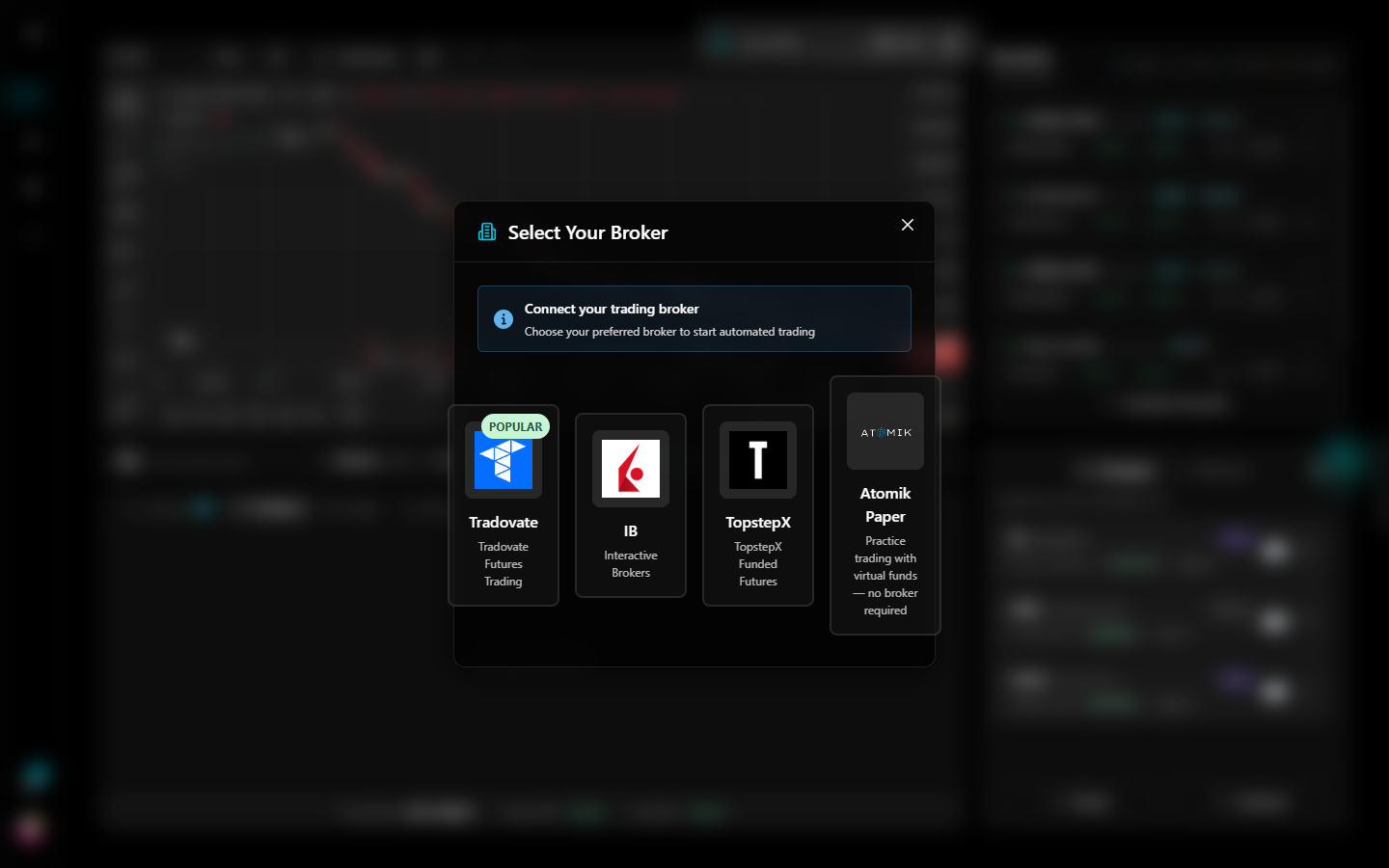
The new account appears in your Accounts panel as ATMK-… with a PAPER badge. Paper accounts run through the same execution pipeline as live accounts, so what you learn here transfers directly.
(If you'd rather connect a real broker first, see the Broker Connection Guide — Tradovate takes about two minutes via OAuth.)
Step 2: Create a webhook strategy
- In the Strategies panel (bottom right), click + Create
- Choose Webhook Strategy — your signals will come from TradingView and POST to an Atomik webhook URL
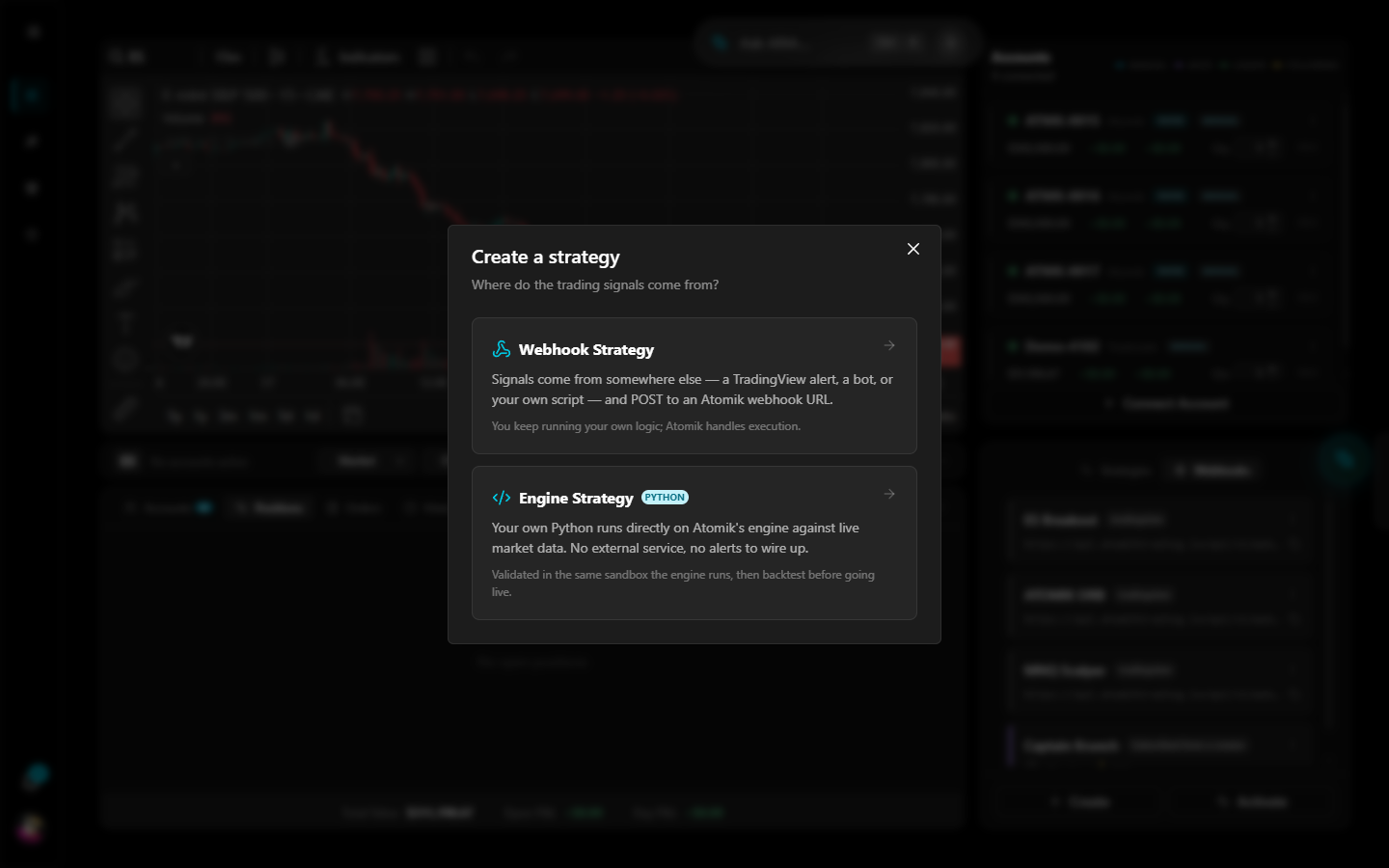
- Pick Personal Use (you can share or monetize a strategy later — see the Marketplace guide)
- On the Configuration step, give the strategy a name (e.g. "My First Strategy"), pick the closest strategy type, and choose TradingView Pine Script as the signal source
- Review and create
When the strategy is created you get its webhook URL with an embedded secret. Copy it now — for security, the full URL with the secret is only shown at creation. It looks like:
https://api.atomiktrading.io/api/v1/webhooks/{token}?secret={secret}
Your webhooks are always visible in the Webhooks tab of the same panel, where you can check delivery logs later.
Step 3: Activate it on your paper account
A strategy trades only when it's activated on a specific account:
- In the Strategies panel, click Activate
- Select your new webhook strategy as the signal source
- Select your paper account
- Set the quantity (start with 1 contract)
- Turn the strategy on
The strategy card now shows its symbol, account, and quantity, with a toggle to pause it any time.
Step 4: Point a TradingView alert at your webhook
In TradingView (a paid TradingView plan is required for webhook alerts):
- Open a chart and create an Alert (for a first test, a simple price-crossing alert is fine)
- In the alert dialog, open the Notifications tab and enable Webhook URL
- Paste your Atomik webhook URL
- Set the alert Message to:
{"action": "BUY"}
That's the minimum payload — Atomik reads the action and executes with the quantity you configured in Step 3. For exits, partial exits, and strategy-driven sizing, see the Webhook Setup Guide.
You don't have to wait for the market: you can test the pipeline with any HTTP client. Send a POST with body {"action": "BUY"} to your webhook URL and the trade executes immediately.
Step 5: Watch it execute
When the alert fires:
- The Positions tab (under the chart) shows the new open position
- Your paper account card updates its Open P&L in real time
- The Webhooks tab shows the delivery in the webhook's logs — this is the first place to look if nothing happened
To close the position, send the exit payload from another alert (or manually):
{"action": "SELL", "comment": "EXIT_FINAL"}
If nothing happened
Check these in order — they cover nearly every first-time miss:
- Webhook logs (Webhooks tab) — did the request arrive? Any error message?
- Strategy is on — the toggle on the strategy card must be active
- Right account — the strategy must be linked to the account you're watching
- Payload is valid JSON —
{"action": "BUY"}, straight quotes, no trailing comma
More cases in the FAQ.
Where to go next
- Webhook Setup — full payload reference: exits, partial exits, quantity from the alert
- Broker Connection — connect Tradovate or a funded account when you're ready for live
- Paper Trading — how the simulated account works
- Strategy Builder — have AI write and backtest a strategy for you, no TradingView needed
- Copy Trading — run one strategy across multiple accounts
Start on paper, verify the full loop end to end, and only then point a strategy at a funded or live account with small size.